
If the AFR Android app stops working in the background or when the screen goes off, it may be because your phone has put it in a background or sleeping mode that restricts its functioning. To resolve this issue, refer to the steps below.
Samsung
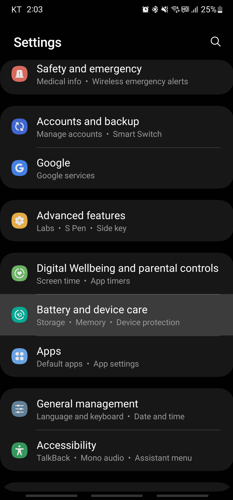
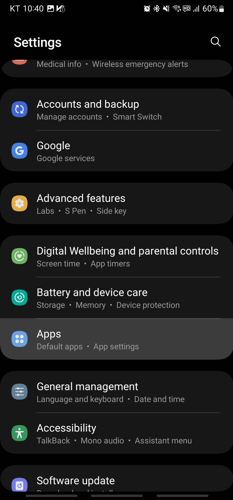
1. Open Settings
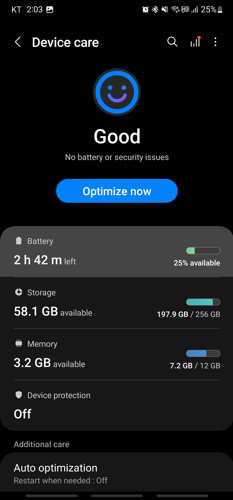
2. Click Battery and device care
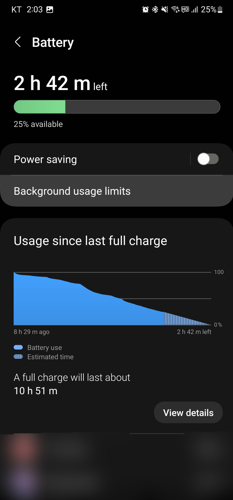
3. Click Battery
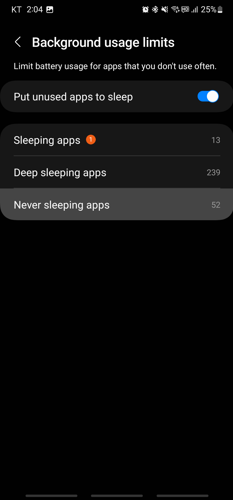
4. Click Background usage limits
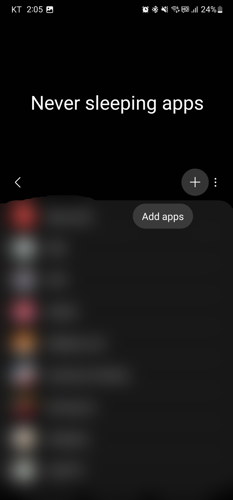
5. Click Never sleeping apps
6. Click the plus(+) button
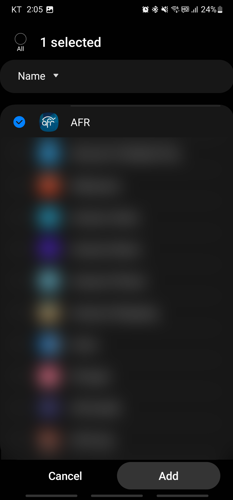
7. Select AFR
8. Click the Add button
9. Go Back to the main settings page
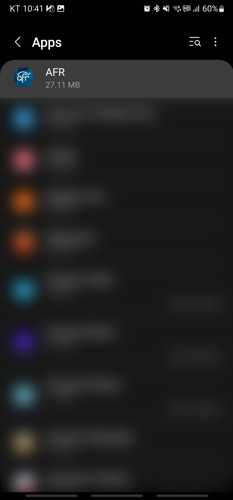
10. Click Apps
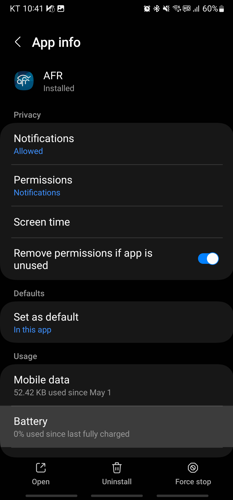
11. Select AFR
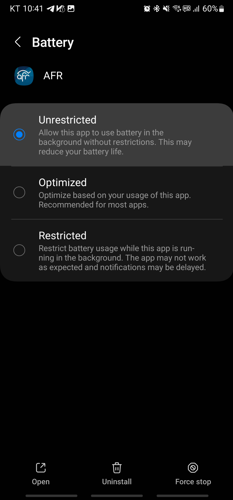
12. Click Battery
13. Click on the checkbox for Unrestricted
2. Click Battery and device care
3. Click Battery
4. Click Background usage limits
5. Click Never sleeping apps
6. Click the plus(+) button
7. Select AFR
8. Click the Add button
9. Go Back to the main settings page
10. Click Apps
11. Select AFR
12. Click Battery
13. Click on the checkbox for Unrestricted
Most other manufacturers
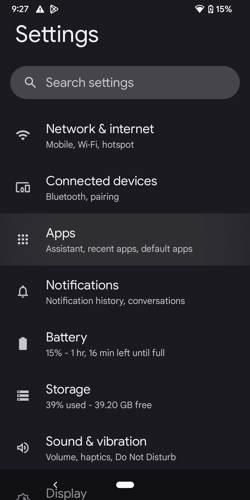
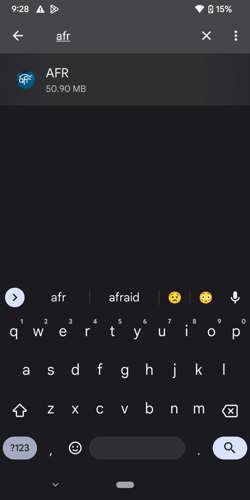
1. Open settings
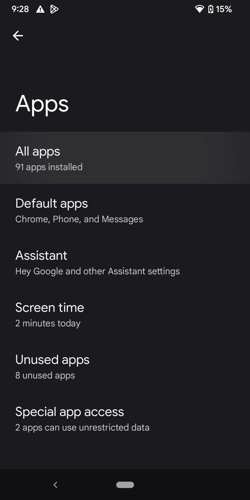
2. Click apps
3. Click All apps or See all ### apps
4.Search for and click on AFR
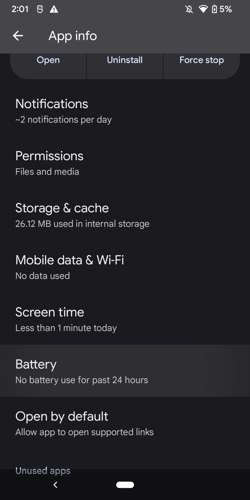
5.Click Battery or App Battery Usage
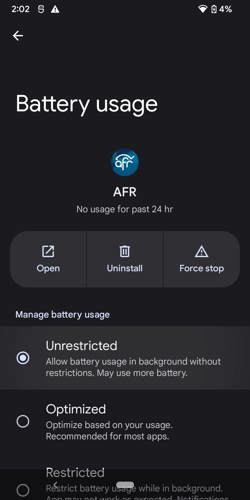
6.Click Unrestricted
2. Click apps
3. Click All apps or See all ### apps
4.Search for and click on AFR
5.Click Battery or App Battery Usage
6.Click Unrestricted
Related Topics
Contact AFA App Support
Send an email to faq@afa.net with a description of your problem and the Manufacturer and Model of your phone.
Latest Podcasts
At The Core With Walker Wildmon and Rick Green
(A "Best Of' from October 2, 2026) North Korea’s Persecution of Christians
Friday, October 16, 2026
The Hour of Intercession With Joseph Parker
Pastor Danny Robbins, of Apostolic Life Church, Tupelo, MS
Wednesday, October 14, 2026
America's Providential History With Stephen McDowell
How Christians Can Fulfill Their Civil Duties, Part 4
Tuesday, October 13, 2026
The Dr. Nurse Mama Show With Jessica Peck
Moving From Financial Fear To Faithful Stewardship feat. Crystal Paine
Tuesday, October 13, 2026
Jenna Ellis in the Morning
James Talarico's Absence, Kimberly Gilfoyle Faces Jail
Tuesday, October 13, 2026
